
Are you tired of endlessly clicking through menus and toolbars in SketchUp? Do you feel like your 3D modeling process is slower than it should be, with your creative flow constantly interrupted by searching for the right tool? You’re not alone. The single biggest leap in productivity for any SketchUp user, from beginner to seasoned professional, comes from mastering one simple thing: SketchUp shortcut keys.

Learning to command SketchUp with your keyboard is like switching from a winding country road to a six-lane highway. It transforms your process from a series of clunky clicks into a fluid, intuitive dance between your hands. This comprehensive guide is your roadmap to that highway. We’ll cover everything from the absolute essential hotkeys to the game-changing power of creating your own custom shortcuts. Get ready to supercharge your SketchUp workflow and reclaim your creative momentum.
Table of Contents
Why Bother with SketchUp Shortcut Keys? The Speed and Efficiency Advantage
Before diving into the specific keys, it’s crucial to understand why they are so transformative. The benefits go far beyond just saving a few seconds here and there; they fundamentally change how you interact with the software.
- Unleash Muscle Memory: Just like typing or playing an instrument, your fingers will eventually learn where the keys are. Actions like drawing a line (L), pushing a surface (P), or orbiting your model (O) become second nature. This allows your brain to stay focused on your design, not on the software’s interface.
- Minimize Mouse Travel: The journey from your model to a toolbar and back again is a tiny interruption, but these interruptions add up to significant wasted time and mental energy over a project’s lifespan. SketchUp keyboard shortcuts keep your cursor where it belongs: on your model.
- Maintain Creative Flow: The state of ‘flow’ is where your best creative work happens. Hunting for icons in a toolbar is a guaranteed flow-killer. Using hotkeys keeps you immersed in the creative process, allowing ideas to translate into form without friction.
- Professional-Level Efficiency: In any professional setting, time is money. A faster, more efficient 3D modeling process means you can complete projects quicker, iterate on designs more effectively, and ultimately be more profitable. Mastering sketchup hotkeys is a non-negotiable skill for professionals in architecture, interior design, and construction.
The Absolute Essentials: 20 SketchUp Hotkeys Every User Must Know
If you’re just starting, don’t try to learn a hundred shortcuts at once. Begin with this core set of commands. Integrating these into your daily use will build a strong foundation for a faster SketchUp workflow. These are some of the most essential sketchup shortcut keys for beginners.
Core Navigation & Viewing Tools
These shortcuts allow you to move around your model effortlessly. They are the most frequently used keys in any session.
- Select (Spacebar): Your ‘home base’. This is arguably the most important shortcut. Hitting the spacebar instantly returns you to the selection tool, ending any current command.
- Orbit (O): Rotates the camera around your model. Hold Shift while orbiting to temporarily switch to the Pan tool.
- Pan (H): Moves the camera vertically and horizontally without rotating. The ‘H’ stands for ‘Hand’.
- Zoom (Z): Zooms the camera in and out. You can also use the mouse scroll wheel for this, which is often faster.
- Zoom Extents (Shift + Z): This is a lifesaver. It instantly zooms the camera to show everything in your model, perfect for when you get lost in a detailed corner.
Fundamental Drawing & Modification Tools
These are your bread-and-butter modeling tools. They are the commands you’ll use to create and manipulate geometry.
- Line (L): Draws straight lines, the basic building block of everything in SketchUp.
- Rectangle (R): Draws rectangular faces.
- Circle (C): Draws circular faces.
- Push/Pull (P): The magic of SketchUp. This tool extrudes flat faces into 3D forms.
- Move (M): Moves, stretches, and copies entities. Tapping Ctrl (Option on Mac) while moving creates a copy.
- Rotate (Q): Rotates objects around a central point.
- Scale (S): Resizes and stretches geometry.
- Offset (F): Creates a copy of a line or face at a uniform distance from the original.
- Eraser (E): Deletes entities. Holding Shift while erasing will hide lines instead of deleting them.
Selection & Organization
Keeping your model organized is critical for complex projects. These shortcuts help manage your geometry.
- Make Component (G): Creates a component from your selected geometry. Components are powerful; editing one instance updates all other instances automatically.
- Paint Bucket (B): Applies colors and materials to faces. The ‘B’ stands for ‘Bucket’.
- Tape Measure (T): Measures distances and can be used to create construction guidelines.
Level Up Your Workflow: Intermediate SketchUp Keyboard Shortcuts
Once you’re comfortable with the basics, these intermediate shortcuts will provide even more control and precision, especially in complex architectural design projects.
Controlling Inferences and Axes
This is a pro-level technique that gives you absolute precision. The arrow keys on your keyboard are your best friends for locking movement and drawing to specific axes.
- Lock to Red Axis (Right Arrow): Constrains drawing or movement to the red (X) axis.
- Lock to Green Axis (Left Arrow): Constrains drawing or movement to the green (Y) axis.
- Lock to Blue Axis (Up Arrow): Constrains drawing or movement to the blue (Z) axis.
- Lock to Parallel/Perpendicular (Down Arrow): Constrains to a parallel or perpendicular inference from a specific edge.
- Lock to an Inference (Hold Shift): Once you see an inference snap (like ‘On Edge’ or ‘Midpoint’), hold down the Shift key to lock your tool to that inference, even if your cursor moves away.
View and Display Controls
Managing what you see is as important as managing what you build.
- X-Ray Mode: By default, this doesn’t have a shortcut, but it’s a prime candidate for a custom one (like ‘X’). It allows you to see through faces to the geometry behind them.
- Hide/Unhide: Learning to hide parts of your model is crucial for working on complex interiors. Assigning custom shortcuts like ‘H’ for Hide and ‘Shift + H’ for Unhide Last can be a huge time-saver.
The Ultimate Power Move: How to Create Custom SketchUp Shortcuts
This is where you truly take control. SketchUp allows you to assign a keyboard shortcut to nearly any command, including those that don’t have one by default. This is how to create custom sketchup shortcuts and tailor the software to your exact needs.
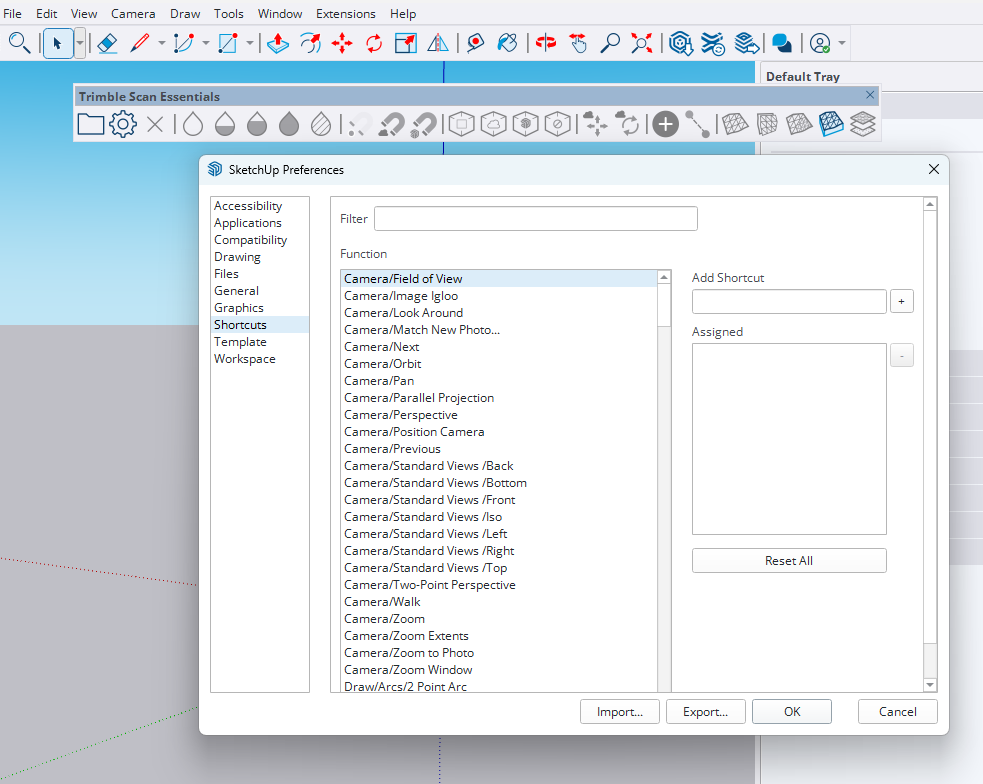
Here’s a step-by-step guide for SketchUp Pro (the process is slightly different in SketchUp Free on the web):
- Open the Preferences Window: Navigate to Window > Preferences on a PC, or SketchUp > Preferences on a Mac.
- Select the Shortcuts Panel: In the list on the left, click on ‘Shortcuts’.
- Find Your Command: In the ‘Function’ list, you’ll see every available command in SketchUp. Use the ‘Filter’ box to quickly search for the command you want. For example, type ‘Paste in Place’ to find that command.
- Assign the Shortcut: Click on the desired function to select it. Then, click inside the ‘Add Shortcut’ text box and press the key or key combination you want to assign (e.g., Ctrl + Shift + V).
- Click the ‘+’ Button: Press the plus (+) icon to assign the new shortcut. If the shortcut is already in use, SketchUp will warn you. You can choose to overwrite it if you wish.
- Click OK: Once you’re done, click ‘OK’ to save your changes.
Recommended Custom Shortcuts:
- Paste in Place (Ctrl + Shift + V): Invaluable for moving objects between groups or components while maintaining their original coordinates.
- Hide Rest of Model (I): When editing a group or component, this command hides everything else, allowing you to focus.
- View Hidden Geometry (Alt + H): Toggles the visibility of hidden geometry on and off.
- Reverse Faces (Alt + R): Quickly flips any selected faces to their correct orientation.
For more detailed guidance, the official SketchUp Help Center is an excellent resource. The ability to customize SketchUp shortcuts is a hallmark of an advanced user.
Printable SketchUp Shortcut Keys Cheat Sheet
Keep this list handy on your desk until the keys become second nature. This organized list covers the most critical navigation controls and modeling tools.
| Category | Command | Windows Shortcut | Mac Shortcut |
|---|---|---|---|
| Tools | Eraser | E | E |
| Line | L | L | |
| Rectangle | R | R | |
| Circle | C | C | |
| Arc | A | A | |
| Push/Pull | P | P | |
| Move | M | M | |
| Rotate | Q | Q | |
| Scale | S | S | |
| Offset | F | F | |
| Paint Bucket | B | B | |
| Tape Measure | T | T | |
| Select | Spacebar | Spacebar | |
| Make Component | G | G | |
| Viewing | Orbit | O | O |
| Pan | H | H | |
| Zoom | Z | Z | |
| Zoom Extents | Shift + Z | Shift + Z | |
| Editing | Undo | Ctrl + Z | Cmd + Z |
| Redo | Ctrl + Y | Shift + Cmd + Z | |
| Copy | Ctrl + C | Cmd + C | |
| Paste | Ctrl + V | Cmd + V | |
| Cut | Ctrl + X | Cmd + X |
Common Pitfalls and Pro Tips
- Don’t Overwhelm Yourself: As mentioned, don’t try to memorize 50 keys on day one. Start with the ‘Big Ten’ (Select, Line, Rectangle, Push/Pull, Orbit, Pan, Zoom, Move, Eraser, Make Component). Once those are automatic, add a few more.
- The Left-Hand Rule: Most experienced users adopt a ‘left hand on keyboard, right hand on mouse’ posture. This allows for rapid-fire command execution. Try to group your most-used custom shortcuts around keys your left hand can easily reach (like Q, W, E, A, S, D, Z, X, C).
- Consistency is Key: If you work on a team, consider exporting your shortcut preferences and sharing them. This ensures everyone is working with the same efficient setup, which is a best practice discussed in many professional design forums.
- SketchUp Free vs. Pro: Be aware that the ability to fully customize SketchUp shortcuts is a feature of SketchUp Pro. The web-based SketchUp Free version has a fixed set of shortcuts that cannot be changed.
Conclusion: Your Path to SketchUp Mastery
Becoming proficient with SketchUp shortcut keys is not an overnight process; it’s a habit you build over time. But the investment is repaid a hundredfold in saved time, reduced frustration, and increased creative output. By starting with the essentials, gradually incorporating intermediate techniques like axis locking, and finally tailoring the software to your specific needs with custom hotkeys, you will fundamentally change your relationship with this powerful 3D modeling tool.
Stop letting the interface dictate your speed. Take command of your keyboard, build that muscle memory, and watch your design ideas flow from your mind to the screen with unprecedented efficiency and ease. Your future, faster self will thank you. Many leading university design programs emphasize digital workflow efficiency, and mastering shortcuts is a foundational step in that direction.