
In a world where creative workflows are increasingly mobile, the line between the design studio and the field is blurring. For years, architects, designers, and makers have dreamed of a tool that combines the power of desktop 3D modeling with the portability and intuitive interface of a tablet. That dream is now a reality. Enter SketchUp for iPad, a full-featured, robust application that puts the entire design process right at your fingertips. It’s not just a model viewer or a watered-down companion app; it’s the SketchUp you know and love, reimagined for a new generation of creative professionals.
This comprehensive guide will explore everything you need to know about this game-changing tool. We’ll dive deep into its core features, compare it to its desktop counterpart, and provide a practical workflow to get you modeling in minutes. Whether you’re a seasoned architect considering an iPad architectural design workflow or a hobbyist curious about 3D on a tablet, this article will show you why SketchUp for iPad is a force to be reckoned with.
Table of Contents
What is SketchUp for iPad? The Evolution of a Design Classic
SketchUp has a storied history, starting as a simple, intuitive tool by @Last Software, later acquired by Google, and now thriving under the stewardship of Trimble. Its core philosophy has always been to make 3D modeling accessible to everyone. The launch of SketchUp for iPad marks the most significant step in that journey since its inception.
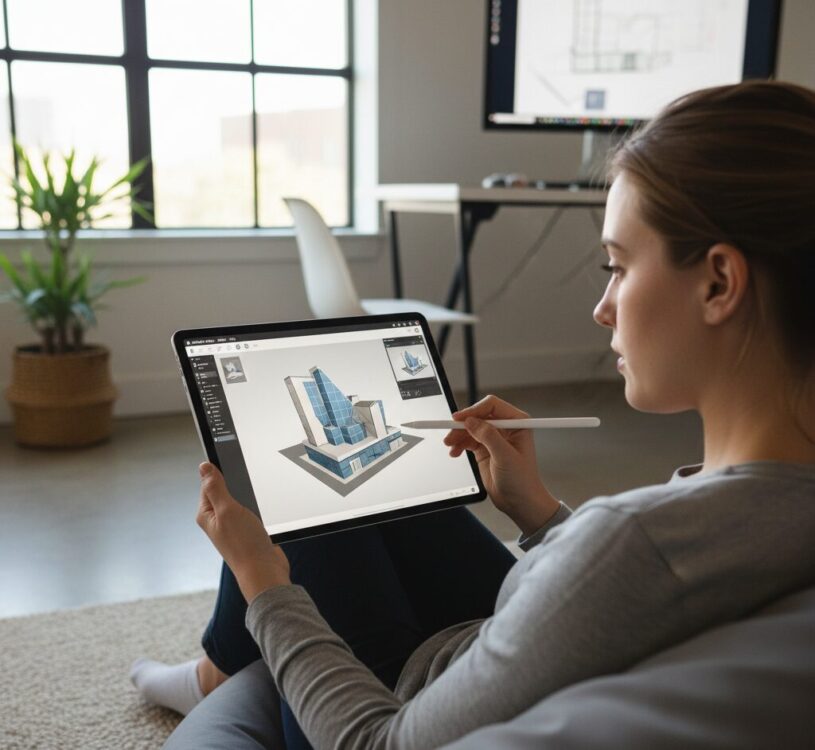
This isn’t Trimble’s first foray into mobile. SketchUp Viewer has been available for years, but it was just that—a viewer. The new SketchUp for iPad is a complete creation tool. It’s part of the SketchUp Go subscription, a package designed for professionals who need to design, collaborate, and present anywhere. This subscription bundles the iPad app with the web-based modeler and Trimble Connect for cloud storage, creating a seamless ecosystem for your projects.
Getting Started: System Requirements and Installation
Before you can start modeling, you need to ensure your device is ready. The performance of a demanding 3D modeling app for iPad is heavily dependent on the hardware.
Is Your iPad Ready for SketchUp?
While the app is optimized for a range of devices, you’ll get the best experience on newer models. Here’s what Trimble recommends:
- iPad Models: An iPad Pro is highly recommended for the best performance, especially the models with M1 or M2 chips. The SketchUp iPad Pro experience is exceptionally smooth. It also works on iPad (5th Gen+), iPad Air (3rd Gen+), and iPad Mini (5th Gen+).
- Operating System: You’ll need iPadOS 15 or newer.
- The Apple Pencil: While you can use your finger, the app is built from the ground up for the Apple Pencil (1st or 2nd Gen). Its precision and pressure sensitivity are crucial for an efficient and enjoyable modeling
workflow. The precision of this stylus technology is a key enabler for professional creative apps, a fact well-documented by Apple’s own technology briefs.
Installation and Setup
Getting up and running is straightforward:
- Download: Head to the Apple App Store and search for “SketchUp”.
- Install: Tap to download and install the app on your iPad.
- Sign In: Launch the app and sign in with your Trimble ID. If you don’t have one, you can create one for free.
- Subscription: SketchUp for iPad is available through a SketchUp Go, Pro, or Studio subscription. There’s a free 7-day trial available, allowing you to test the full feature set before committing.
The Core Experience: A Deep Dive into the User Interface
One of the biggest challenges in porting desktop software to a tablet is adapting the user interface. Trimble has done a masterful job of creating an experience that feels both familiar to long-time users and perfectly native to the iPad.
Redesigned for Touch and Pencil
The UI is clean and uncluttered. The main tools are arranged in a context-aware toolbar on the left. As you select tools like Line, Push/Pull, or Move, the options and inference toggles appear at the bottom. The Measurements box, a staple of SketchUp, sits prominently in the bottom right corner, ready for precise input.
Navigation is incredibly intuitive:
- Orbit: Use one finger to orbit your model.
- Pan: Use two fingers to drag and pan your view.
- Zoom: Pinch with two fingers to zoom in and out.
This gesture-based system quickly becomes second nature, making model navigation faster and more fluid than with a traditional mouse.
Mastering the Tools with Apple Pencil
This is where SketchUp for iPad truly shines. Drawing with the Apple Pencil feels like sketching on paper, but with the power of a 3D environment. The direct interaction of drawing lines, pushing faces, and moving components with the tip of the Pencil creates a tangible connection to your model.
Key tools are enhanced by the Pencil experience:
- Line Tool: Draw freehand, and SketchUp can interpret your intent, locking to axes and snapping to inferences.
- Push/Pull: Simply tap a face and pull it up or push it down with the Pencil.
- Follow Me: Draw a path, then a profile, and watch the magic happen as you guide the shape along the path with the Pencil.
Key Features That Make SketchUp for iPad a Powerhouse
Beyond the core modeling tools, the iPad version boasts several unique and powerful features that optimize the mobile workflow.
Markup Mode: Collaborate and Annotate
One of the most practical features for professionals is Markup Mode. With a single tap, you can switch from modeling to annotation. This allows you to:
- Redline in 3D: Use the Apple Pencil to draw directly on top of your model in 3D space.
- Add Notes: Create text-based annotations to communicate changes or ideas.
- Control Styles: Choose from different colors and line weights to organize feedback.
- Save Scenes: Each set of markups can be saved as a Scene, allowing you to present feedback to clients or collaborators in a clear, organized manner.
AutoShape: From Doodle to 3D Model
AutoShape is a feature that feels like magic. It uses machine learning to recognize your rough doodles and automatically transform them into perfect geometric shapes. A wobbly circle becomes a perfect circle. A hastily drawn rectangle becomes a precise rectangle with 90-degree corners. This feature is a massive time-saver during the initial conceptual design phase, allowing you to block out ideas rapidly without worrying about perfect input.
3D Warehouse Integration
No SketchUp experience would be complete without the 3D Warehouse, and it’s fully integrated into the iPad app. You have direct access to the world’s largest library of free 3D models. Need a specific chair for an interior design project? A particular window for an architectural model? Simply search the warehouse, download the model, and place it directly into your project on the iPad. This dramatically speeds up the process of adding context and detail to your designs.
Cloud Syncing with Trimble Connect
SketchUp for iPad is built on a foundation of cloud connectivity. Every project you create is saved to Trimble Connect, the company’s cloud storage platform. This ensures that your work is always:
- Accessible: Start a project on your desktop, make edits on-site with your iPad, and present it on a client’s computer using the web app. Your files are everywhere you need them.
- Backed Up: No more worrying about saving files to a local drive. Your work is securely stored in the cloud.
- Collaborative: Share projects with team members and control viewing or editing permissions.
This seamless syncing is crucial for a modern, flexible workflow and is a core part of the SketchUp Go value proposition.
A Practical Workflow: How to Use SketchUp on iPad
Let’s walk through a simple project to see how these features come together. Imagine you’re an architect doing an initial site visit for a small cabin.
- Start On-Site: Open SketchUp on your iPad. You can even import a geolocation snapshot to get the site context.
- Rapid Massing: Use the Line tool and AutoShape with your Apple Pencil to quickly sketch the basic footprint and extrude the walls with Push/Pull. This takes minutes, allowing for real-time
conceptual designdiscussions with the client. - Add Context: The client mentions they own a specific Eames lounge chair. No problem. You open the 3D Warehouse, search for the chair, and drop it into your model to help them visualize the space.
- Client Feedback: The client wants to see a different roof pitch. You quickly model the alternative. They want to add a note about window placement. You switch to Markup Mode, circle the area, and add a text annotation: “Consider a larger window here for the morning sun.”
- Save and Sync: You save the file. It automatically syncs via Trimble Connect. By the time you get back to the office, the updated model, complete with the client’s feedback, is ready to be opened on your desktop computer for more detailed work.
- AR Presentation: For an extra ‘wow’ factor, you can use the augmented reality viewer to project a 1:1 scale model of the cabin onto the actual building site, giving the client an unparalleled sense of the final product.
SketchUp for iPad vs. Desktop: A Head-to-Head Comparison
So, can the iPad version replace your desktop powerhouse? The answer is: it depends on your needs. Here’s a breakdown of where each platform excels.
Where the iPad Shines
- Portability: The ability to design anywhere is the iPad’s biggest advantage.
- Intuitive Input: For many, drawing with the Apple Pencil is more natural and faster for initial ideation.
- Client Collaboration: On-the-spot edits and markups during meetings are invaluable.
- Site Analysis: Take your model to the construction site for verification and clash detection.
Where the Desktop Still Wins
- Extensions: The vast library of third-party extensions (plugins) for rendering, parametric modeling, and analysis is currently a desktop-only feature.
- Performance with Massive Models: While the SketchUp iPad Pro is incredibly powerful, a high-end desktop workstation will still handle exceptionally large and complex models with millions of polygons more smoothly.
- Advanced Rendering: High-fidelity, photorealistic rendering on iPad is limited. Most advanced rendering engines like V-Ray and Enscape require the desktop version.
- Keyboard and Mouse Precision: Some users will always prefer the precision and speed of a traditional keyboard and mouse for detailed drafting and component creation.
Is SketchUp for iPad Worth It? An Honest Review
This is the critical question for many potential users. After extensive use, the answer is a resounding yes, for the right person.
Who is it for?
- Architects: Perfect for schematic design, site visits, and client meetings. It’s an ideal tool for iPad architectural design concepting.
- Interior Designers: A phenomenal tool for space planning and presenting material and furniture options to clients in real-time.
- Construction Professionals: Use it on-site to review plans, check measurements, and communicate with build teams.
- Woodworkers & Makers: Design projects in the workshop, making adjustments on the fly without running back to a desk.
- Students & Educators: An accessible and intuitive entry point into the world of 3D modeling.
The rise of powerful mobile hardware is transforming creative industries, a trend noted by industry publications like ArchDaily, which have explored the growing viability of tablets in professional architectural practice.
The Verdict
SketchUp for iPad is not a toy. It’s a professional-grade tool that successfully translates the core power of SketchUp into a mobile format. While it may not replace the desktop for every single task (like final rendering or complex extension use), it excels as a powerful partner in the design process. It bridges the gap between the office and the real world, fostering better communication, faster iteration, and a more flexible workflow.
Tips and Tricks for Power Users
Ready to take your mobile modeling to the next level? Here are a few tips:
- Use a Keyboard: Pair your iPad with a Magic Keyboard or Smart Keyboard. This gives you access to many of the same keyboard shortcuts you use on the desktop, dramatically increasing your speed.
- Customize Your UI: Long-press on the toolbar icons to customize your favorite tools for quick access.
- Master the Outliner: Just like on desktop, the Outliner is essential for organizing complex models. Use it to group objects, control visibility, and keep your projects tidy.
- Choose the Right Hardware: For the absolute best experience, investing in the best iPad for SketchUp—typically the latest iPad Pro with the largest screen you can afford—will pay dividends in performance and usability.
- Explore Other Apps: The iPad ecosystem is rich. You can export your models as USDZ files for use in Apple’s Reality Composer or export images to apps like Procreate for artistic flair. The future of creative software, as outlined by leaders like Adobe is interconnected and cross-platform.
Conclusion: Your Design Studio, Untethered
SketchUp for iPad represents a monumental leap forward for 3D design. By packing a robust, feature-rich modeling engine into a portable and intuitive package, Trimble has empowered a new era of mobile creativity. It elegantly solves the problem of being tied to a desk, allowing ideas to be captured, developed, and shared wherever inspiration strikes.
It’s a testament to a thoughtful design process that respects the SketchUp legacy while fully embracing the unique capabilities of the iPad and Apple Pencil. Whether you’re sketching a skyscraper on a plane, configuring a kitchen layout in a client’s home, or designing a piece of furniture in your workshop, SketchUp for iPad is the tool that untethers your creativity and truly puts the power of 3D modeling in the palm of your hand.